


超实用的浏览器插件Glance,自动命名网页上下载的文件!
有没有遇到过这种情况:下载了一堆PDF论文、图片等文档,结果文件名全是一串乱码或无意义数字?每次都要手动重命名,特别浪费时间!…
超实用的浏览器插件Glance,自动命名网页上下载的文件!
有没有遇到过这种情况:下载了一堆PDF论文、图片等文档,结果文件名全是一串乱码或无意义数字?每次都要手动重命名,特别浪费时间!
如果你不想要自己的文件夹里文件都是乱码,并且在寻找自动给文件取名的最好用的浏览器插件,那就选Glance!它能自动给从网页下载的文件智能命名,让你的文件管理瞬间变得井井有条!
优势:1.完全自动化,下载即重命名,无需任何手动操作。2.支持pdf、图片等常用媒体的改名支持。3.智能识别多种来源的标题,选择最合适的一个。4.轻量级插件,不影响浏览器性能。
对于经常下载论文、报告、或图片的朋友来说,这简直是救星!特别适合科研人员、设计师等需要阅读大量材料的人群。
Glance, a very practical browser plug-in, automatically names files downloaded from the web!
Have you ever encountered this situation: you downloaded a bunch of PDF papers, pictures and other documents, but the file names were all garbled or meaningless numbers? You have to rename them manually every time, which is a waste of time!
If you don’t want your files in your folders to be garbled, and you are looking for the best browser plug-in to automatically name files, then choose Glance! It can automatically name files downloaded from the web intelligently, making your file management instantly organized!
Advantages: 1. Fully automated, rename as soon as you download, no manual operation required. 2. Support renaming of common media such as PDF and pictures. 3. Intelligently identify titles from multiple sources and select the most appropriate one. 4. Lightweight plug-in, does not affect browser performance.
For friends who often download papers, reports, or pictures, this is simply a lifesaver! Especially suitable for researchers, designers and other people who need to read a lot of materials.
Glance - Automatically rename downloaded file插件谷歌浏览器安装教程
第一步:下载Glance - Automatically rename downloaded file安装扩展
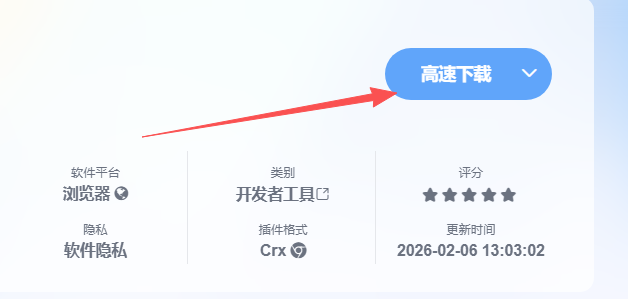
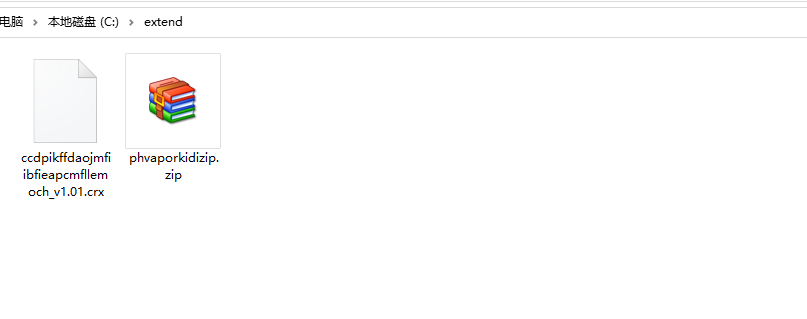
第二步:下载下来的扩展解压到你想放的文件夹里
比如我解压到extend文件夹
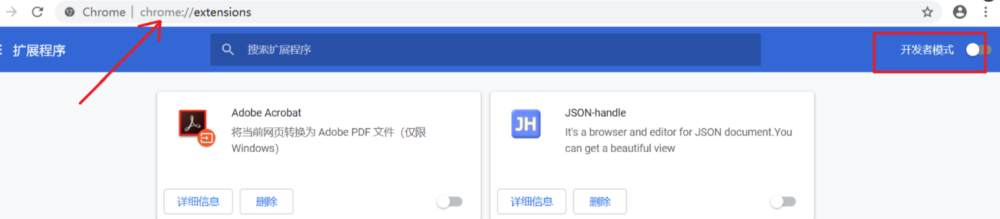
打开Chrome的扩展页面(chrome:// extensions /或按Chrome菜单图标>更多工具>扩展程序),右上角开发者模式,点击开启,蓝色为开启,灰色为关闭;
再次将crx文件拖放到扩展程序,页面左下角提示:“扩展功能、应用和主题背景可能会损害您的计算机。您确定要继续吗?”
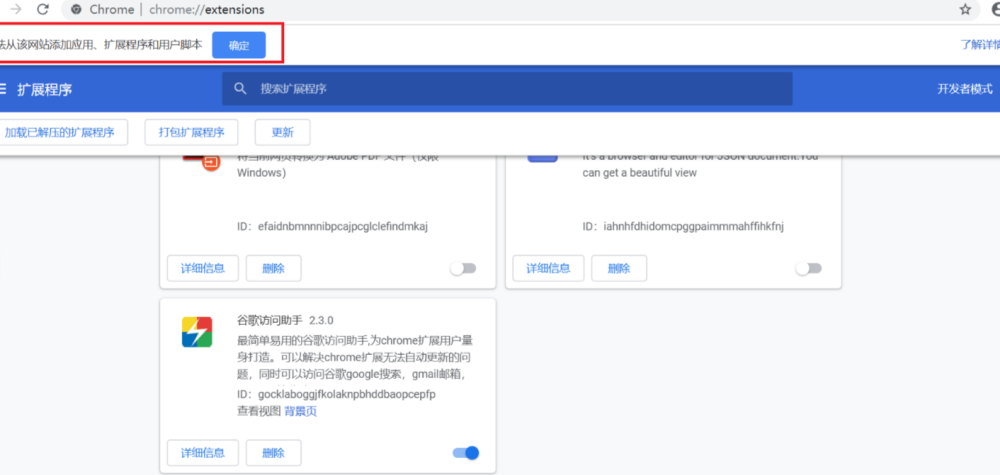
点击“继续”依然显示“无法从该网站添加应用、扩展程序和用户脚本”。尝试另一种办法方法。
第三步:把crx后缀改为zip,再进行解压
如果有些windows电脑系统查看不到文件扩展名,则可以通过以下设置:
找到文件夹顶部,点击查看

点击查看,找到隐藏已知文件扩展名,去掉前面的勾即可
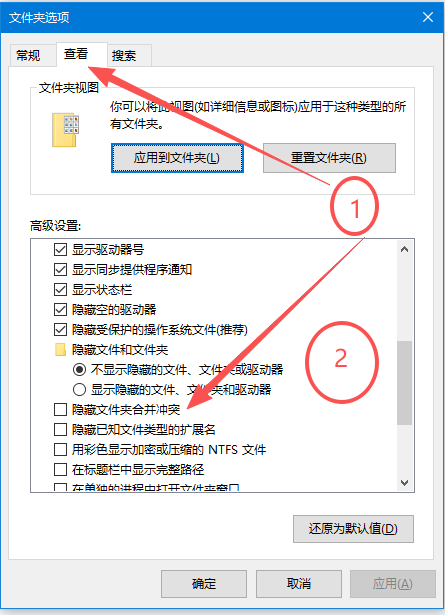
这样你就能看到解压好的扩展名:.crx
解压的扩展名为.crx
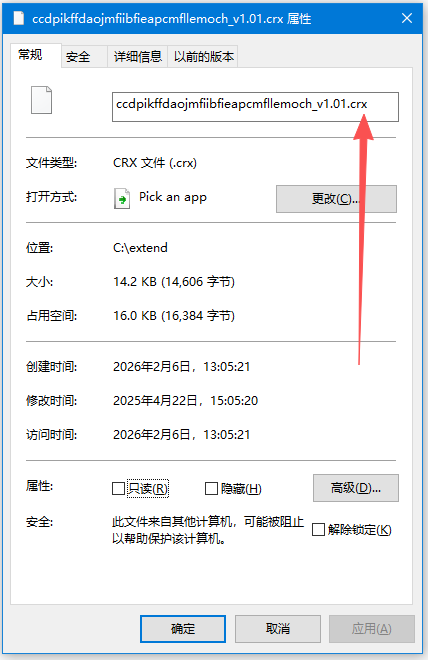
把.crx改为:zip
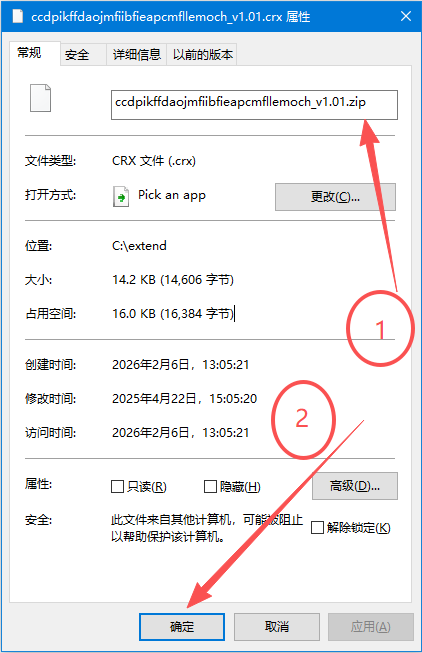
然后再用解压工具再解压一遍,即可得到扩展的全部文件
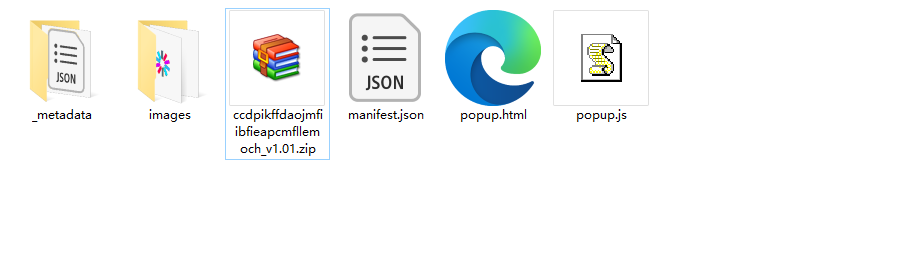
然后再谷歌浏览器插件页面选择:加载已解压的扩展程序
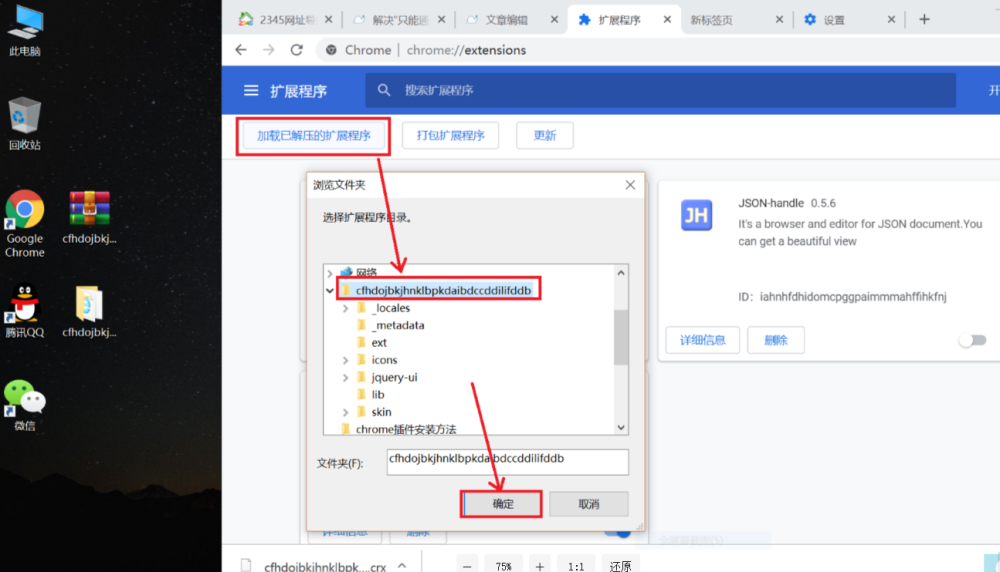
这样就安装成功了
友情提醒:
其他浏览器,包括qq浏览器,360浏览器,edge浏览器,猎豹浏览器,搜狗浏览器安装插件的方法都是类似的,以上内容大部分通用!


