


用于远程工作最佳的屏幕录制、屏幕截图和编辑工具。
超级截图录屏大师是一款录屏神器,也是一款截屏神器.屏幕截图& 图片编辑,屏幕录像&视频编辑,所有这些截图,录屏功能,都被一气呵成的集成到插件和对应的网站服务中.
屏幕录像功能
1. 对网页内容进行屏幕录像
2. 对全桌面进行录屏
3. 对某一个软件进行录屏
4. 录摄像头
5. 支持高清录制
6. 支持下载为MP4格式
7. 视频编辑功能(很快发布)
8. 既可以保存到云端,也可以保存到本地
更重要的是,Awesome Screenshot 让您能够轻松捕捉并分享您在 ChatGPT 中的完整聊天记录!
屏幕截图和抓屏功能
1. 截取网页全屏. 不论网页多长, 都可以将这个网页变成一张图片, 方便编辑和分享
2. 选择部分屏幕截取
3. 对屏幕可视部分进行截图
4. 不但帮助保存截图,还可以保存该截图对应的URL
图片批注和编辑功能
1. 选择你所需要的尺寸
2. 方框,圆圈,箭头等各种尺寸的批注
应用场景:
1. 录会议
2. 录课程
3. 录游戏
4. 录帮助视频
5. 录软件bug.
截屏和录屏后,可以生成URL,一键分享.
是你远程工作,远程学习,娱乐分享的得力助手.被用户称为录屏大师和屏幕录制专家.
Capture your screen with Awesome Screenshot & Screen Recorder, a powerful tool for screen sharing, used by millions of users. Save screen recordings & screenshots to awesomescreenshot.com and share your videos and images instantly with unique shareable links.
The two-tab popup menu allows you to switch between screen recording and screen capture easily.
Want to share your screen for cases like reporting technical issue, making product demo or how-to tutorials? Set the Record tab as the primary tab in Options and start recording whenever needed.
**Record**
- Record your Desktop, current Tab or Camera only
- Include your voice in recording with Microphone option on
- Include your face in your video by embedding your webcam
- Choose video dimensions from 720p, 1080p or 4K
**Save & Share Recording**
- Instantly get a shareable link of a video after finishing recording
- Easily share a recording video to Jira, Slack, Trello, Asana, GitHub
- Download uploaded videos in WebM or MP4 format
- Save recordings to local disk
Prefer to screenshot web pages as images? No problem, you can set the Capture tab as the primary tab.
**Screen Capture**
- Capture a screenshot of the page you visit, full page, selected area or visible part
- Capture a screenshot of your entire screen or a specific application window
- Capture visible part, entire screen or app window after delay
**Annotate Screenshot**
- Resize or crop a screenshot to the size you need
- Annotate your screenshot with rectangle, circles, arrows, lines, etc.
- Add text to your screenshot with or without background color, change text font and font size
- Blur sensitive information on your screenshot
- Highlight important part on your screenshot
- Select a local image or paste a copied image from your clipboard to annotate
**Save & Share Screenshot**
- Save screenshot as image in PNG or JPG format, or download screenshot as PDF
- One click to save screenshot to your Awesome Screenshot account and get a shareable link
- Send a screenshot to a destination in Jira, Slack, Trello, Asana, GitHub
- Copy a screenshot directly when capturing selected area for quick pasting
**Contact us**
If you have any questions, suggestions or feature requests, feel free to submit a report by clicking the Feedback button in the extension’s popup menu.
You can also send a message to care@awesomescreenshot.com anytime. Let us know your thoughts! Thank you.
**Pricing & Policy**
Pricing: https://www.awesomescreenshot.com/pricing
Privacy Policy: https://www.awesomescreenshot.com/privacy/
Awesome Screenshot 截图录屏插件谷歌浏览器安装教程
第一步:下载Awesome Screenshot 截图录屏安装扩展
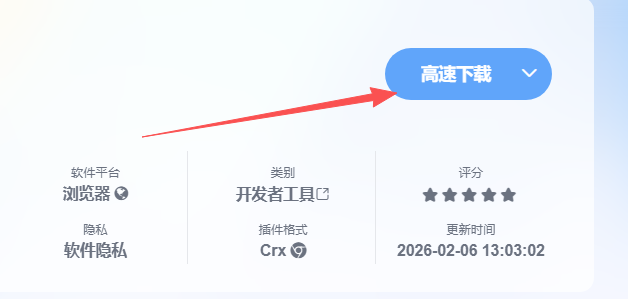
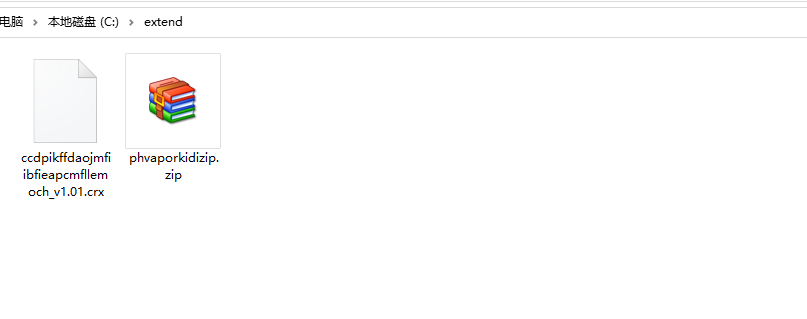
第二步:下载下来的扩展解压到你想放的文件夹里
比如我解压到extend文件夹
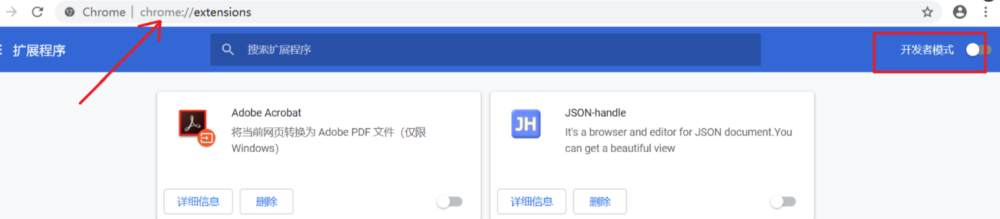
打开Chrome的扩展页面(chrome:// extensions /或按Chrome菜单图标>更多工具>扩展程序),右上角开发者模式,点击开启,蓝色为开启,灰色为关闭;
再次将crx文件拖放到扩展程序,页面左下角提示:“扩展功能、应用和主题背景可能会损害您的计算机。您确定要继续吗?”
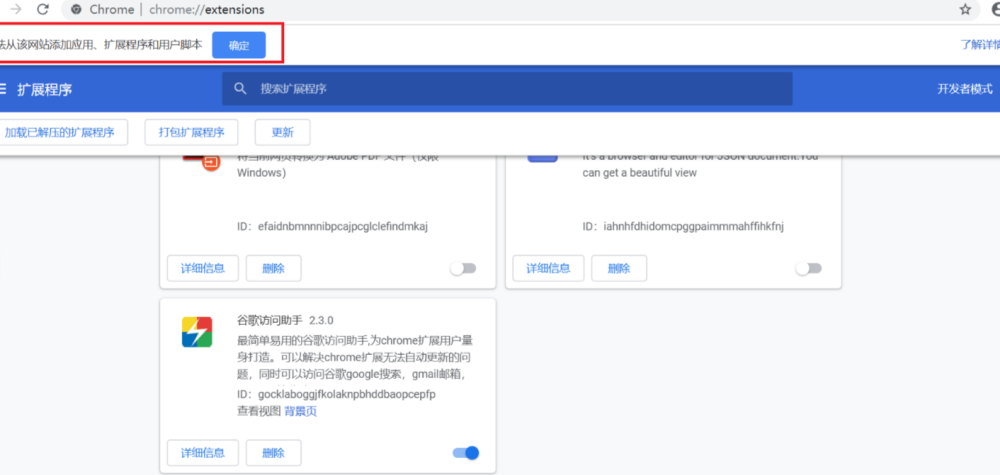
点击“继续”依然显示“无法从该网站添加应用、扩展程序和用户脚本”。尝试另一种办法方法。
第三步:把crx后缀改为zip,再进行解压
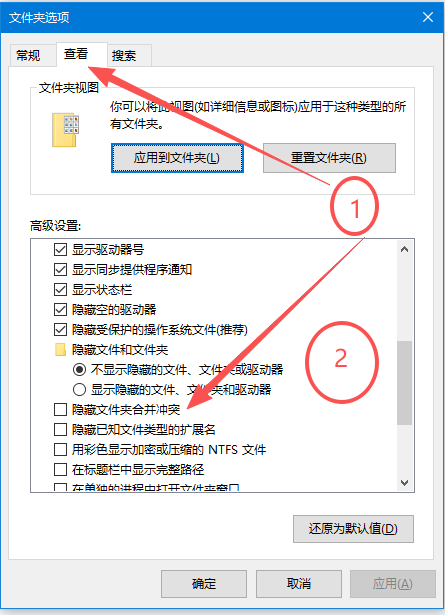
如果有些windows电脑系统查看不到文件扩展名,则可以通过以下设置:
找到文件夹顶部,点击查看

点击查看,找到隐藏已知文件扩展名,去掉前面的勾即可
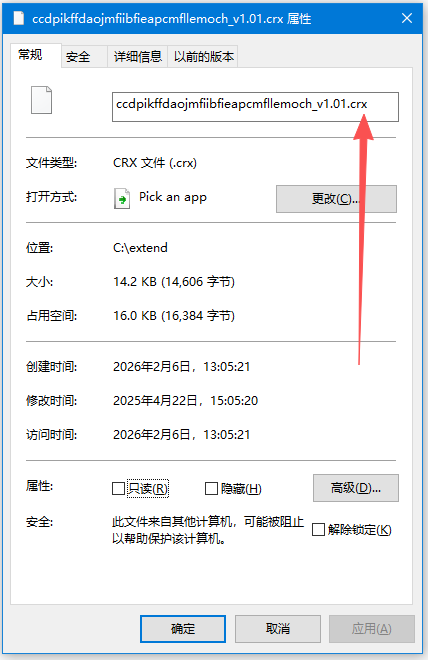
这样你就能看到解压好的扩展名:.crx
解压的扩展名为.crx
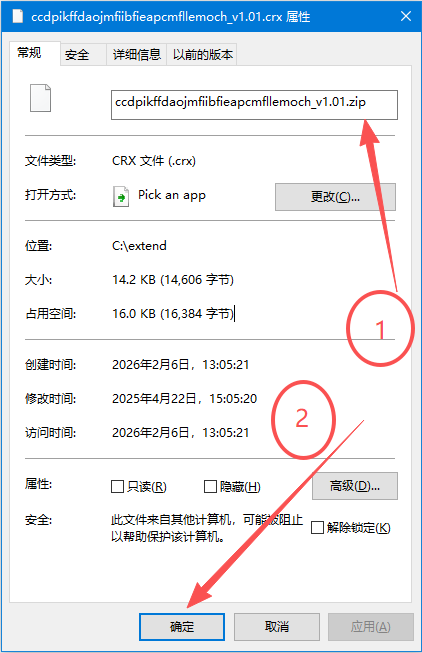
把.crx改为:zip
然后再用解压工具再解压一遍,即可得到扩展的全部文件
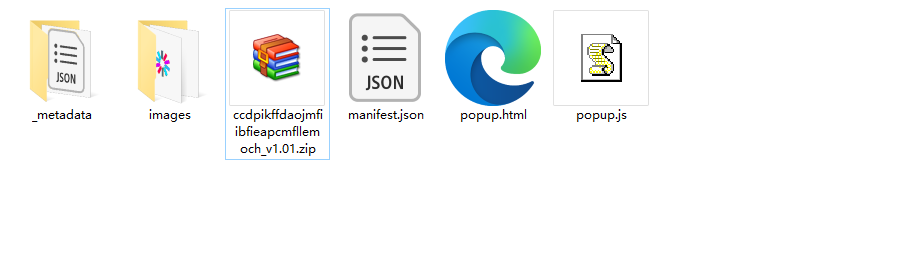
然后再谷歌浏览器插件页面选择:加载已解压的扩展程序
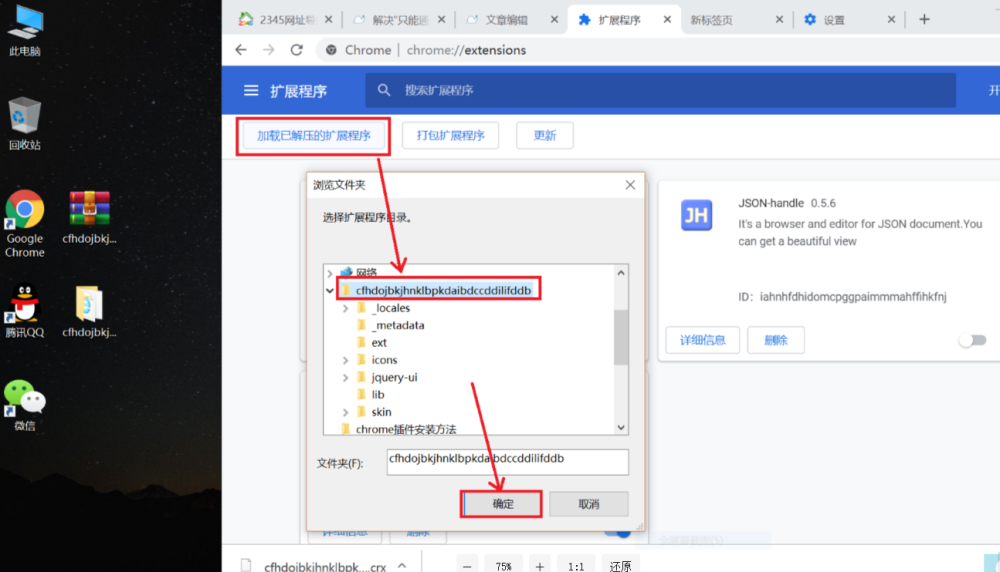
这样就安装成功了
友情提醒:
其他浏览器,包括qq浏览器,360浏览器,edge浏览器,猎豹浏览器,搜狗浏览器安装插件的方法都是类似的,以上内容大部分通用!


